Using 1Password for your SSH key to GitHub
Using 1Password as an SSH agent is a great way to secure your keys while keeping your workflows smooth


Overview
I've used 1Password for around 10 years and love it. Although it's boring as hell in the sense that it just stores passwords, it's one of the best tools I've ever used.
Most developers at some point probably need to create and use an SSH key. I use one for GitHub and have for a long time. In this post I will explain how 1Password can also be used as an SSH agent with password approval (or fingerprint on macOS) on every use. This is not something custom, but rather natively built into the 1Password desktop app.
Why
If you want to use a secure SSH key you will need to enter the credentials from time to time in your terminal or application of choice. 1Password can be used both to store all the details for your SSH key in one place and to enter the key on the fly for you. It's simple, elegant and secure.
How to
At a high level here we'll (1) Generate an SSH key in 1Password, (2) Add the public key to GitHub, (3) Turn on the 1Password SSH agent, (4) Point your SSH client at the 1Password agent and then (5) Verify it works.
1. Generate an SSH key in 1Password
Open the 1Password app, and select New Item > SSH Key. Choose Add Private Key > Generate New Key, pick a key type (Ed25519 is the default) and hit Generate, then Save. 1Password generates the private key, public key and fingerprint and stores all of it in the encrypted item.
2. Add the public key to GitHub
Go to https://github.com/settings/ssh/new
Fill in Title and Key. Enter any name in the Title field and paste the public key into Key. Looks like this:
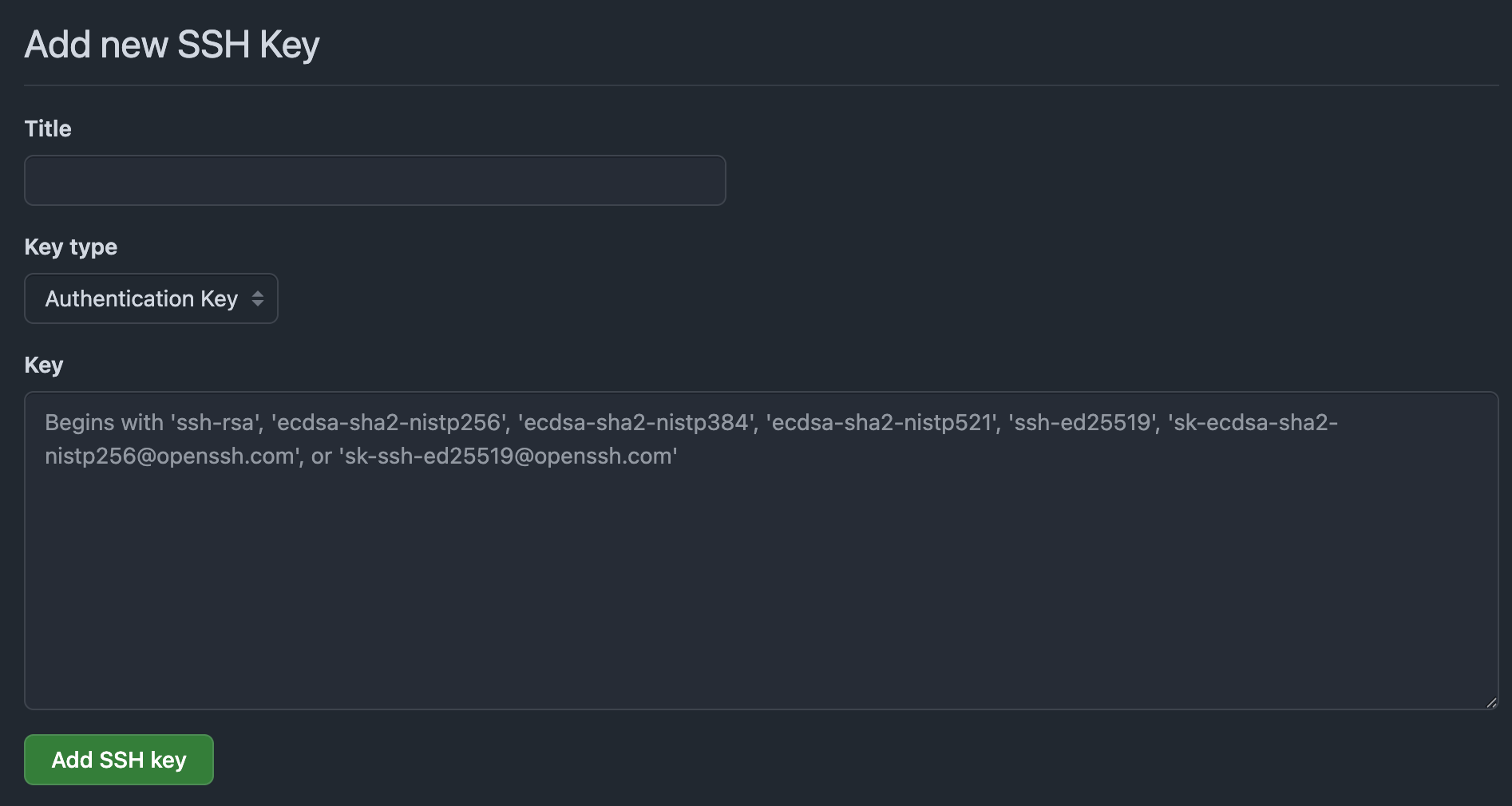
Now GitHub trusts the public key.
3. Turn on the 1Password SSH agent
This step is what makes 1Password not just be 1Password, but also an SSH agent.
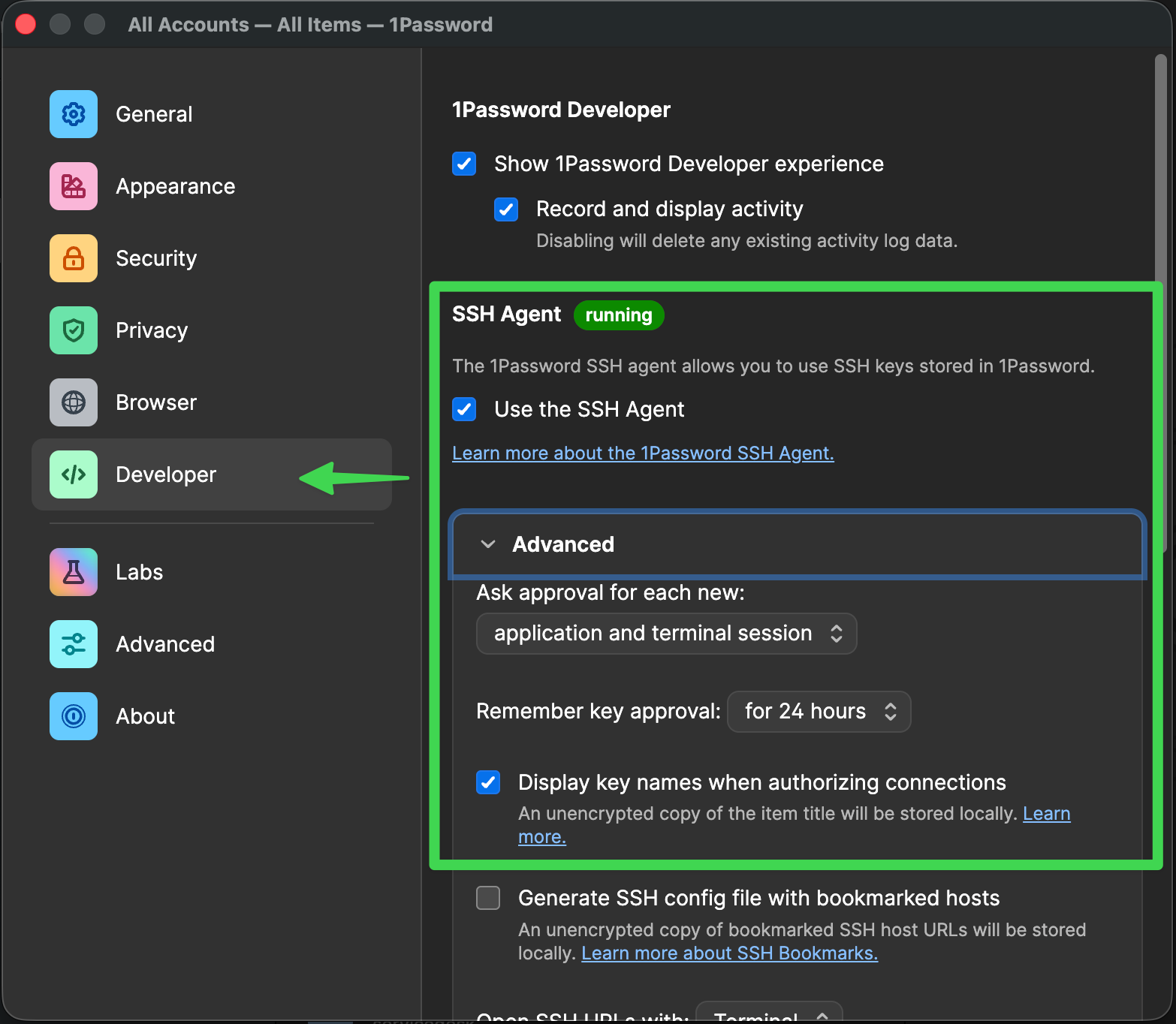
In the 1Password app, go to Settings > Developer and check Use the SSH Agent. Enable "Display key names when authorizing connections" too, so prompts are easier to read.
This is how it looks in the app:
4. Point your SSH client at the 1Password agent
If you've never edited SSH configuration before, this step is probably the weirdest step. But there is a file at ~/.ssh/config that contains a few lines of configuration that basically points a hostname to a specific SSH tool to execute. We need to point to the 1Password agent here.
It could be the case that 1Password at some point will do this automatically, but if not, enter the path to the agent.sock like this in your SSH config.
Add to ~/.ssh/config:
Host *
  IdentityAgent "~/Library/Group Containers/2BUA8C4S2C.com.1password/t/agent.sock"
Now for all hosts, SSH will prompt 1Password to provide the key. This is the glue between SSH and 1Password.
5. Verify it works
Running this command should trigger the 1Password SSH agent we just configured (or run a git pull/git push in a repo that uses an SSH remote):
ssh -T git@github.com
1Password prompts, asking for access to the key:
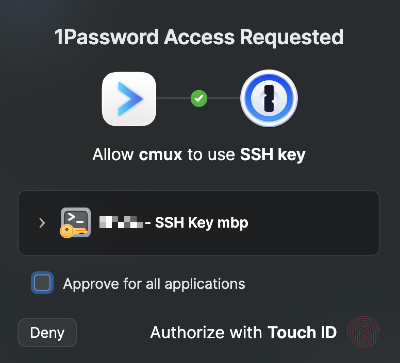
And that's it - now you have a secure SSH key integrated with 1Password.
Summary
We've now seen how we can extend 1Password from being just a password manager to also be an SSH agent. This works very well and allows you to protect your SSH keys while still giving you a smooth developer experience. I've been running this setup for a few years and it have worked very well. Hopefully you will like it too.